Personal advice
Not sure which version is right? We help private and business customers.
Our advice team
Phone Mon–Fri 9 am to 2 pm, email daily 9 am to 9 pm
- Item number: LI-801190
- Licence term: Permanently valid
- Language: All languages
- Country zone: Worldwide
- Shipping method: E-Mail
- Manufacturer: Microsoft
What's Included
- Instant delivery – Key & download via email
- Exchange possible as long as the key has not been redeemed
- Guide to installation and activation
- Invoice with VAT shown
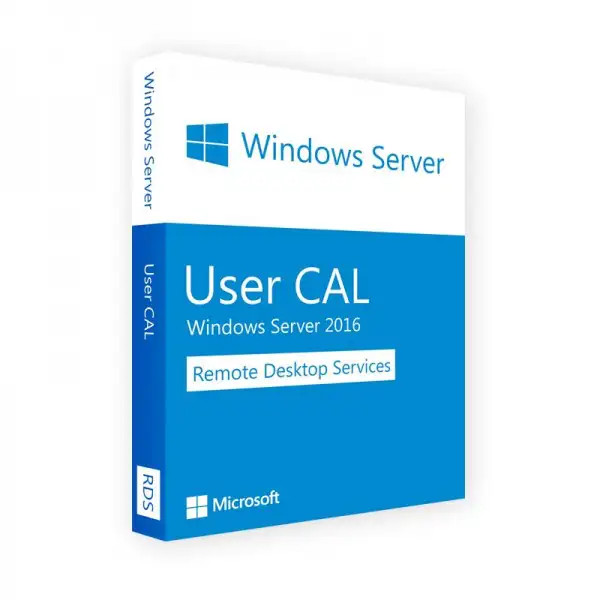
Microsoft Remote Desktop Services 2016 User CAL – Remote Desktop per user

The RDS CAL (Remote Desktop Services Client Access License) allows users to use Remote Desktop sessions on a Windows Server 2016 – for example to work from home, from a branch or via a thin client with Office and specialist applications on the terminal server.
The RDS CAL is required in addition to the normal Windows Server CAL. You choose 1, 5, 10, 25 or 50 licences here.
The key facts at a glance
- Remote Desktop access to Windows Server 2016 and older
- Licensing per user
- Installation in the Remote Desktop licence server
- Packages with 1, 5, 10, 25 or 50 CALs
- For terminal servers, RemoteApp and virtual desktops
Who is this licence for?
- companies with a terminal server
- home office workstations via Remote Desktop
- branches with a central application
- thin client environments
User or Device – which fits?
A User CAL applies to one person, no matter how many devices they use for access – from the office PC, the laptop at home or a tablet. This is worthwhile if employees use several devices. A Device CAL, on the other hand, applies to one device that any number of people may share, for example in shift work, at the till or in the warehouse. You have chosen the User variant here.
Which CAL version do I need?
The CAL version must be at least the version of the server on which the Remote Desktop sessions run. A newer CAL may also be used for older servers – but not the other way round. So if you run servers of different versions, go by the newest.
Choosing the quantity
On this page you choose between 1, 5, 10, 25 and 50 CALs. Count all users or devices that access the server – including occasional access, for example by temporary staff or scanner workstations. If licences are missing later, simply order more.
Why two licences?
The Windows Server CAL allows basic access to the server, the RDS CAL additionally allows working in a Remote Desktop session. For every user or device using Remote Desktop, you therefore need both. The combined package of RDS CAL and client access licence is convenient.
Licences compared
| Remote Desktop Services 2016 User CAL (this item) | per user |
| RDS 2016 Device CAL | per device |
| Windows Server 2016 User CAL | basic access to the server |
| RDS 2016 User CAL + client access licence | both in one package |
You will find more client access licences in the category Remote Desktop 2016 CAL.
Remote Desktop under Windows Server 2016
- Session host with Windows 10 look and feel
- Improved connection management for large environments
- RemoteApp and Remote Desktop Web Access
- Support for pen input in sessions
Managing licences properly
Keep a simple list of which users or devices are licensed, and keep the invoice and licence documents together. When staff change, User CALs may be reassigned to new employees; replaced devices pass their Device CAL on to the new device. That way you are always on the safe side, even in an audit.
Requirements
- Windows Server 2016 or older as the Remote Desktop host
- A valid licence for the server itself, for example Windows Server 2016
- A Remote Desktop licence server in your environment
- Windows Server CALs for the same users or devices
Delivery and setup
- Install the “Remote Desktop Licensing” role on the server and activate the licence server.
- In Remote Desktop Licensing Manager, choose “Install Licenses”.
- Enter the licence data supplied and confirm the type (User or Device), version and quantity.
- In the Remote Desktop deployment, enter the licence server and the matching licensing mode (per user or per device).
Frequently asked questions
Do I also need a Windows Server CAL?
Yes. Every Remote Desktop user or device needs a Windows Server CAL and an RDS CAL.
May I use a 2016 RDS CAL for older servers?
Yes, RDS CALs apply to their own and older server versions.
What happens without installed RDS CALs?
After the 120-day grace period expires, the server no longer allows new Remote Desktop connections. Install the CALs in good time.
Can I buy more CALs later?
Yes, at any time in the quantity required.
Will I receive an invoice?
Yes, with VAT shown, with your company address on request.
Does the CAL also apply to virtual servers?
Yes. CALs apply to access to Windows Server – regardless of whether the server runs physically or as a virtual machine.
Delivery, invoice and support
- Delivery by e-mail: you will usually receive licence data for installation in the Remote Desktop licence server and a guide within 5 to 30 minutes of payment (daily 09:00–21:00 CET). More under Shipping & payment.
- Invoice: every order comes with a proper invoice, with your company address on request.
- Origin of the licence: we source our licences from distributors and wholesalers in Europe. We explain exactly how this works on the page Buying legal software.
- Support: if you have questions about installation or activation, we help by e-mail (Mon–Sun 09:00–21:00 CET), phone (Mon–Fri 09:00–14:00 CET), live chat or remote support with TeamViewer.
Our goodwill promise
If the CAL version you ordered is ever no longer available, we will supply the next higher version with the same quantity and the same type (User or Device) at no extra charge. You never pay more than the price at which you ordered.